Displays & monitors
Pick which monitors Waypaper Engine paints, and how.
Choose displays
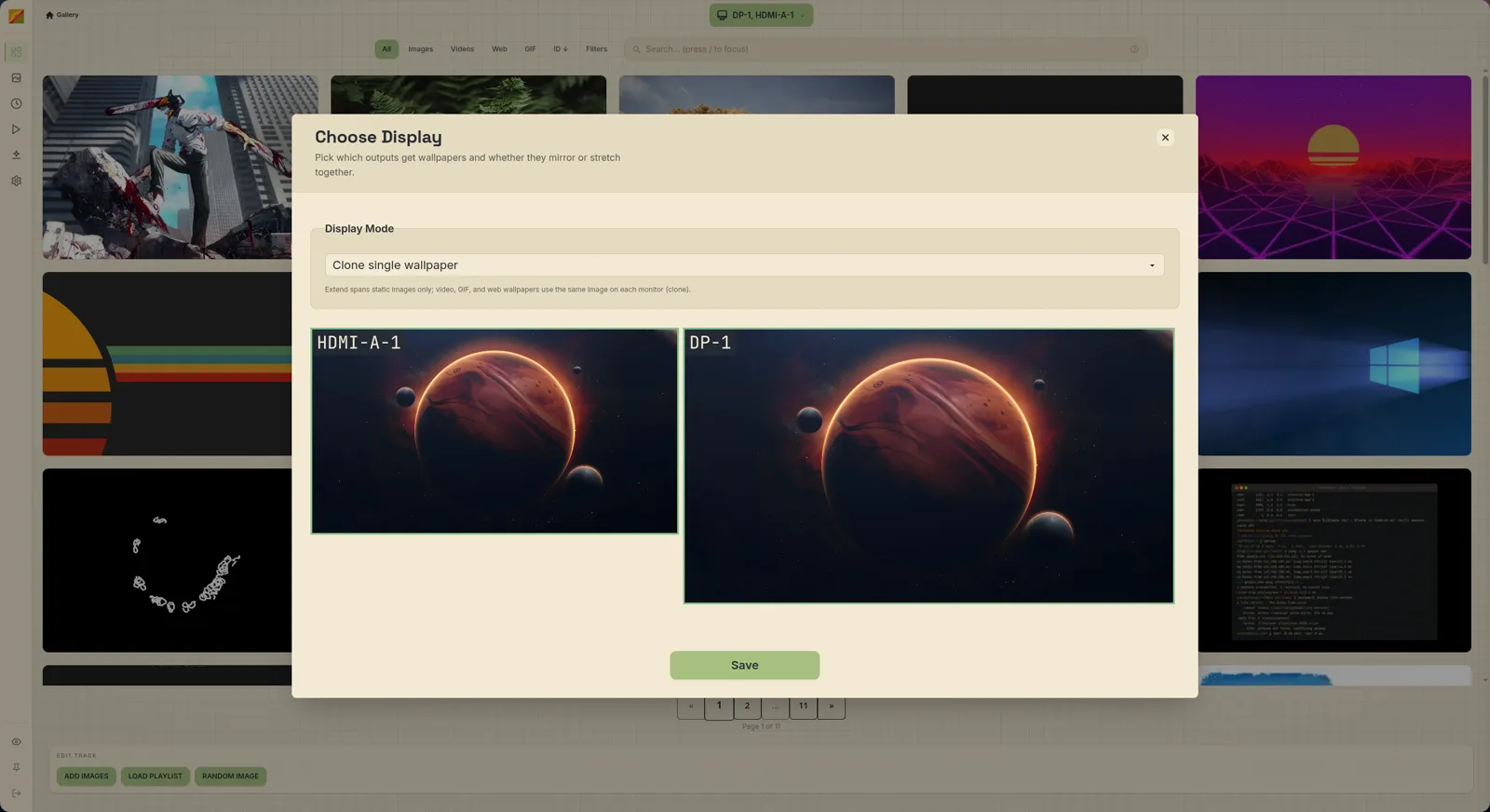
Click Select Display in the top bar (it shows your monitor names once you've picked some) to open Choose Display. It draws your layout to scale with a live preview; click a monitor to select it, pick a Display Mode, then hit Save. The gallery, Random Image and playlists all target your selection.
| Mode | In the app | You select | What you get |
|---|---|---|---|
individual | Wallpaper per display | Exactly one monitor | The image goes to that monitor only. |
clone | Clone single wallpaper | Two or more | The same image on every selected monitor. |
extend | Stretch single wallpaper | Two or more | One image sliced across the selected monitors by their layout (HiDPI scale included). |
Clone and Stretch are greyed out with a single monitor. Only static images are stretched; video, GIF and web wallpapers fall back to clone. A playlist runs on the monitors selected when you start it (Playlists).
Config
The app remembers your selection in config.toml:
[monitors]
selected_monitors = ["DP-1", "HDMI-A-1"]
image_set_type = "individual" # individual | clone | extend| Key | Default | Meaning |
|---|---|---|
selected_monitors | [] | Output names the app targets. A name that isn't connected isn't highlighted. |
image_set_type | individual | The Display Mode. Stick to the three values above. |
This is the app's selection only. CLI calls take their own flags (see below) and ignore it. Full keys in the config reference.
From the CLI
waypaper-daemon monitors                                          # list monitors as JSON
waypaper-daemon wallpaper set 42 -m DP-1                          # one monitor
waypaper-daemon wallpaper set 42 -m '*' --mode clone              # all monitors, same image
waypaper-daemon wallpaper set 42 -m '*' --mode extend             # stretch across all
-m '*' and --mode individual are the defaults. individual across several monitors still puts the same image on each, like clone; for a different image per monitor, make one call per -m. Full flags in the CLI reference.
Missing or blank monitors
Monitor names are whatever your compositor calls the outputs (DP-1, HDMI-A-1, eDP-1). The list refreshes when you open Choose Display, after resume from suspend, and at daemon start, and saved wallpapers are restored per monitor name.
- A new monitor is blank: open Choose Display to refresh, select it, and set something.
- Monitor info looks thin on GNOME: the daemon keeps the detection method it picked at start, so start
wal-qtfirst or restart the daemon. - On X11, make sure
xrandris onPATH. - Still wrong:
waypaper-daemon monitors --directshows what detection finds, skipping the daemon. Attach it to bug reports.