Gallery
The home screen: import wallpapers, find them, set them on a monitor.
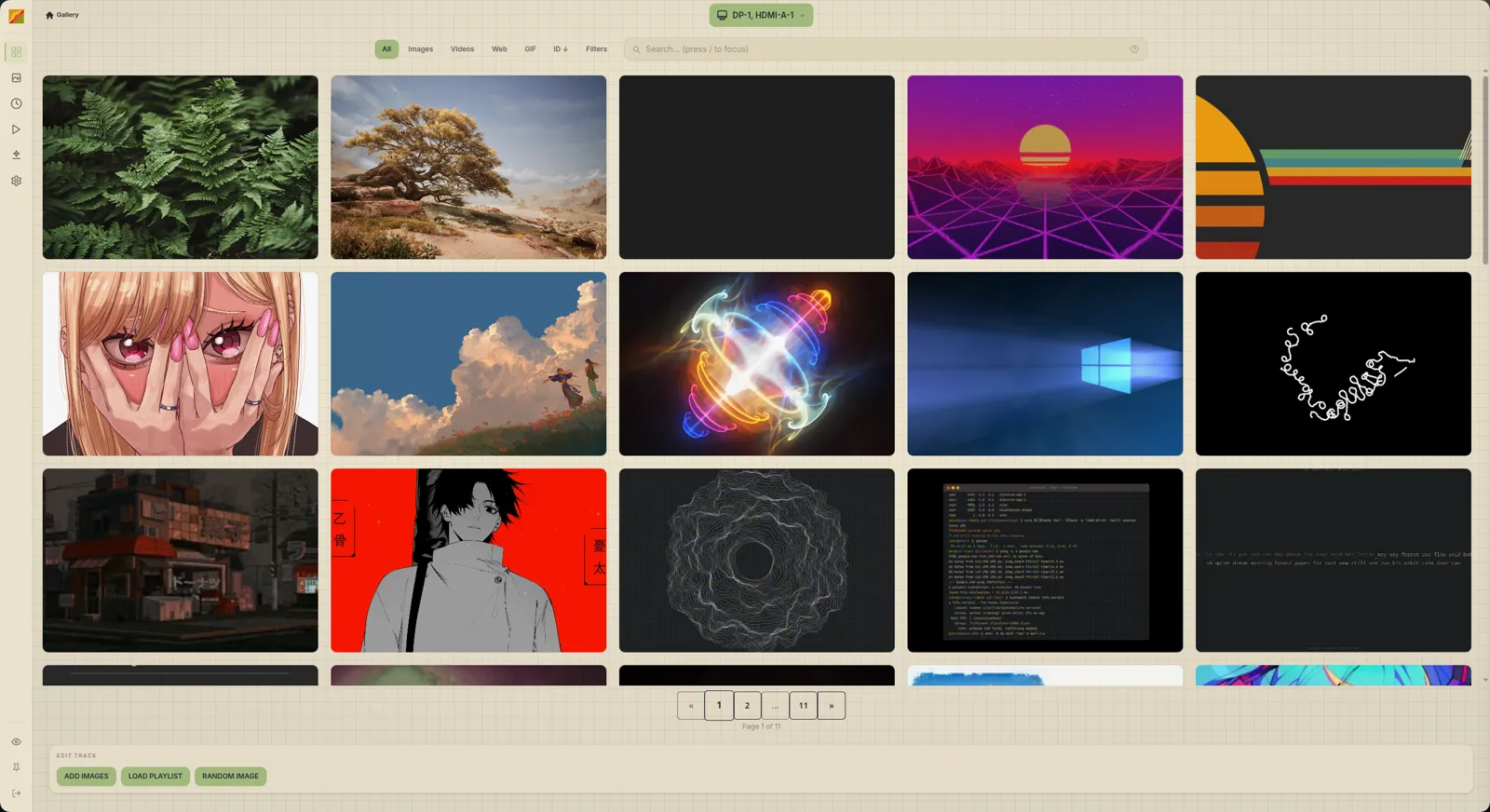
Import
Imports are copied into the images directory (Paths), so deleting the originals is safe.
- Drag and drop files, folders or a web wallpaper onto the window.
- Add cards on an empty gallery. Later, right-click empty space for Import images, Import folder, Import videos or Import web wallpaper (the playlist dock's Add images menu has the same).
- URLs: drag an
http(s)link onto the window to download and import it. You get an "Import from the internet" warning first; tick its box or flip Skip URL Import Warning in Settings, General to stop it.
| What | Formats |
|---|---|
| Images | jpg, jpeg, png, gif, webp, bmp, tiff, tif |
| Videos | mp4, webm, mkv, avi, mov |
| Web wallpapers | A folder or manifest (waypaper.json or project.json), see HTML wallpapers |
Videos need ffmpeg
Video import fails without ffmpeg and ffprobe on your PATH. See Install.
Importing a directory scans it recursively and asks: Create as folder (new gallery folder) or Import individually (into the level you're viewing). Dropping a Shadertoy .json offers to open it in Shader Studio, see Studios.
Find
Press / to jump into the search bar (? opens a cheatsheet). Type, press Enter, get a chip. Chips combine with AND.
| Token | Matches | Example |
|---|---|---|
tag: | Images with that tag | tag:nature |
type: | image, video, gif or web. Several type: chips are OR'd | type:video |
ext: | File format, no leading dot | ext:png |
color: | Palette contains exactly this hex (#rgb or #rrggbb) | color:#aabbcc |
near: | Some palette swatch is within a colour distance of the hex (CIE76 ΔE, lower is stricter) | near:#ff0000~12 |
q: | Case-insensitive substring match on name and tags. Text with no prefix is q: | q:mountains |
Next to the bar:
- All / Images / Videos / Web / GIF narrow by media type.
- Filters sets a resolution filter: any, exact, less than, or greater than a width and height (zero means "don't care").
- x clears your tokens and the suggestion history.
Folders only show with no filter active. Pages hold 50 images; change it with right-click, Images per page (10 to 200).
Set a wallpaper
Double-click a card, or focus it and press Enter. It goes to the displays chosen with Select Display in the top bar, which opens Choose Display:
| Mode | Does |
|---|---|
| Wallpaper per display | Each monitor gets its own image |
| Stretch single wallpaper | One image spanning all monitors |
| Clone single wallpaper | The same image on each |
Stretch only works for static images; videos, GIFs and web wallpapers fall back to clone. See Displays and Backends.
For a one-off, right-click a card and use Set "name": Duplicate across all monitors, Extend across monitors, or On a named monitor.
The checkbox on a card's top-right corner adds it to the playlist being built in the bottom dock, see Playlists.
Select
Ctrl/Cmd-click selects a card; plain click doesn't.- Drag on empty space for a marquee;
Shiftadds to the selection. Ctrl+Aselects the page, again to deselect.Escapeclears.
With a selection, right-click offers move to folder, export to folder, add to playlist and delete.
Organise
Folders exist only in the gallery, not on disk. Right-click empty space, New folder. Drag images onto a folder card or breadcrumb to move them, or use Move to folder…. Rename with F2. Deleting offers keep contents (images move up a level) or and contents.
Tags are edited in the details sidebar: type, press Enter. Search them with tag:.
Details sidebar
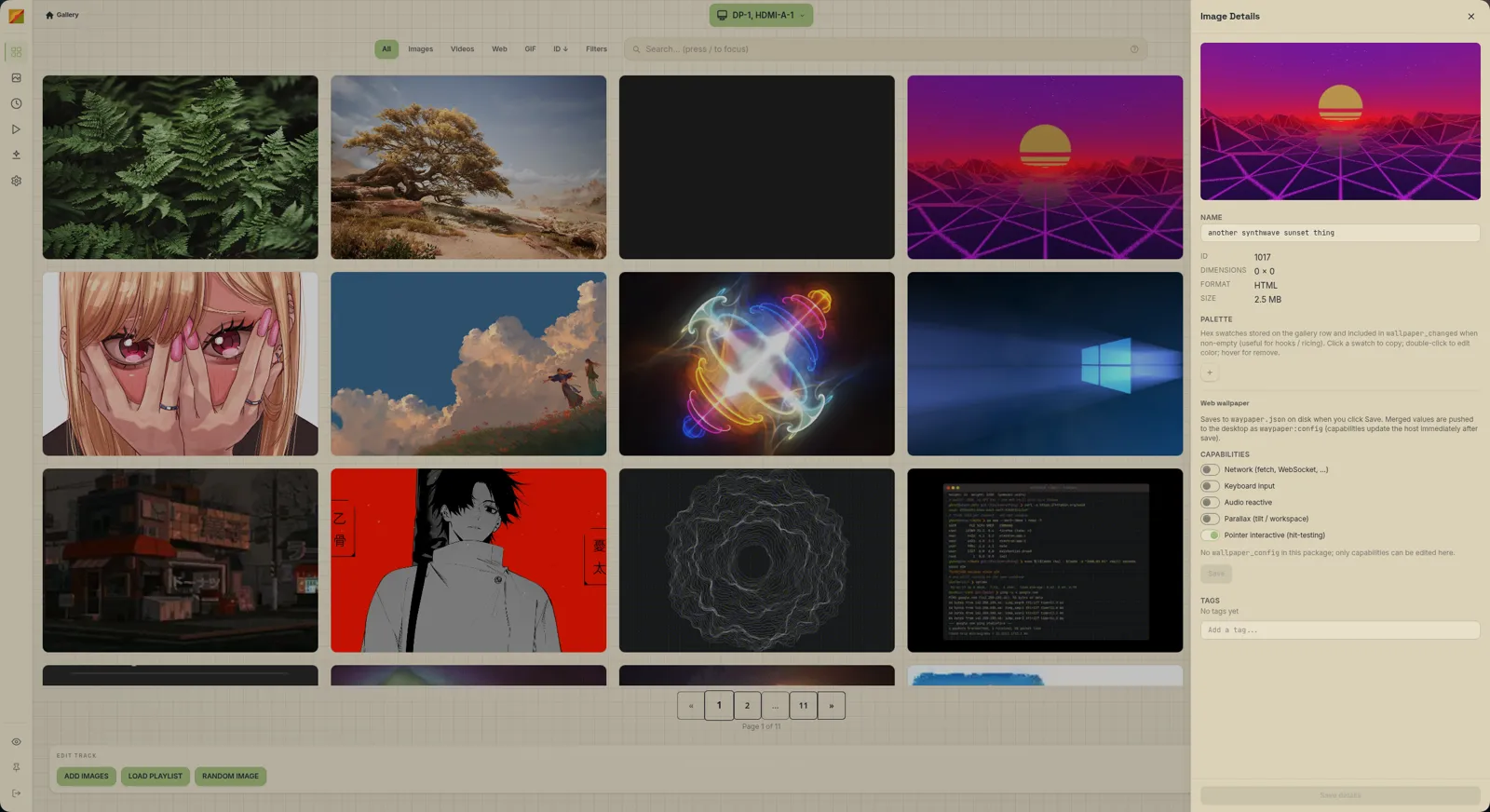
Click the info button on a card's top-left corner, or right-click, Edit details. Nothing is saved until you hit Save details.
- Name: renames the file on disk too. Also editable on the grid by double-click or
F2. - Metadata: ID, dimensions, format, file size.
- Palette: click a swatch to copy its hex, double-click to edit, corner x to remove,
+to add (max 12). Feeds the colour filters and hook payloads. - Tags.
- Videos get Open in Loop Studio. Web wallpapers get their own settings, see HTML wallpapers.
Colour tools
Every image gets a dominant-colour palette at import (web wallpapers start with none).
- Hue strip: twelve hue dots after Filters, plus grey for neutral. Click to filter, again to clear.
- Rainbow sort: the sort button cycles name and ID (import order) order, then Rainbow: by hue, most saturated first, neutrals last.
- Colour picker: the palette icon opens your system colour dialog and adds a
near:#hex~25chip. Picking again replaces it. - Show similar palette: right-click an image with a palette. A ΔE slider (4 to 50) appears in the bar; x drops it.
History
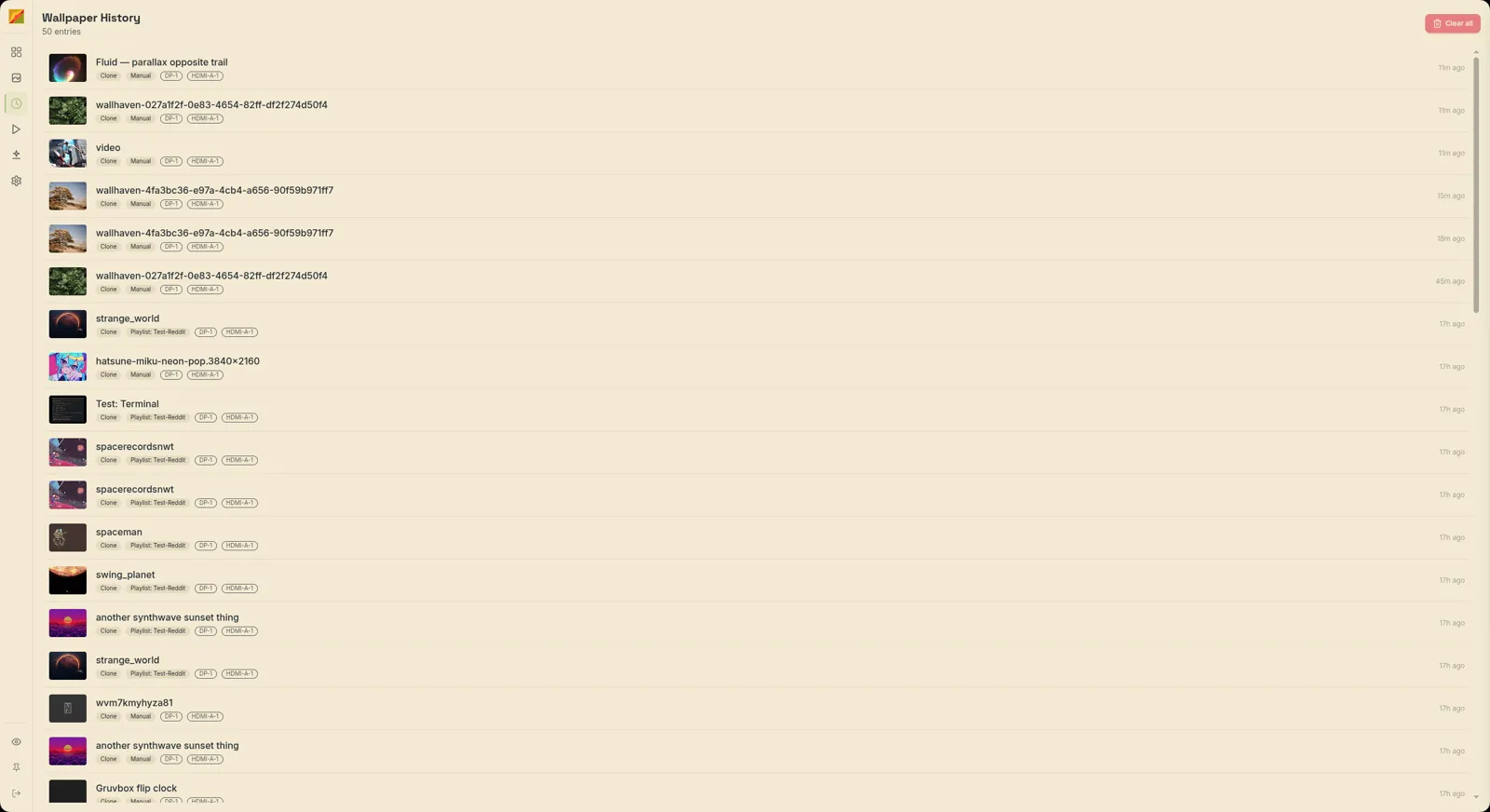
History in the sidebar lists every change, newest first, with its mode, source (Manual, Random, Playlist: name, …) and monitors.
- Click an entry to set it again with the same mode and monitors.
- Right-click for Set "name" (with Restore original), Copy image name and Clear all history.
- Load more fetches the next 50.
Tray
Left-click the tray icon to toggle the window. Right-click for:
- Active playlists: Next image / Previous image (not for time-of-day or day-of-week playlists), Pause or Resume, Stop.
- Recent wallpapers: your last ten, click to re-apply.
- Clear history, Random Wallpaper, Quit.
With Start Minimized and Minimize Instead of Close in Settings, General, the app can live in the tray. Quit exits the GUI; Kill Daemon on Exit decides whether the daemon stays up.
Settings
Ctrl+, or Settings in the sidebar. Changes save as you make them. Keys are in Config; colour themes are in Themes.
| Tab | Holds |
|---|---|
| General | Theme and fonts, UI scale, neobrutalist style options, notifications, start minimized, minimize instead of close, startup intro, kill daemon on exit |
| Daemon | Directories (database, images, thumbnails), socket path, compositor, logging |
| Backend | Which backend to use, fixed or auto, and each backend's options |
| Wallhaven | Enable the integration, API key, NSFW blur. See Wallhaven |