Studios
Two workshops in the sidebar: Shader Studio turns Shadertoy shaders into wallpapers, Loop Studio trims a video into a clean loop.
Beta
Both are rough. Not every Shadertoy shader runs as imported, and you may have to tinker.
Shader Studio
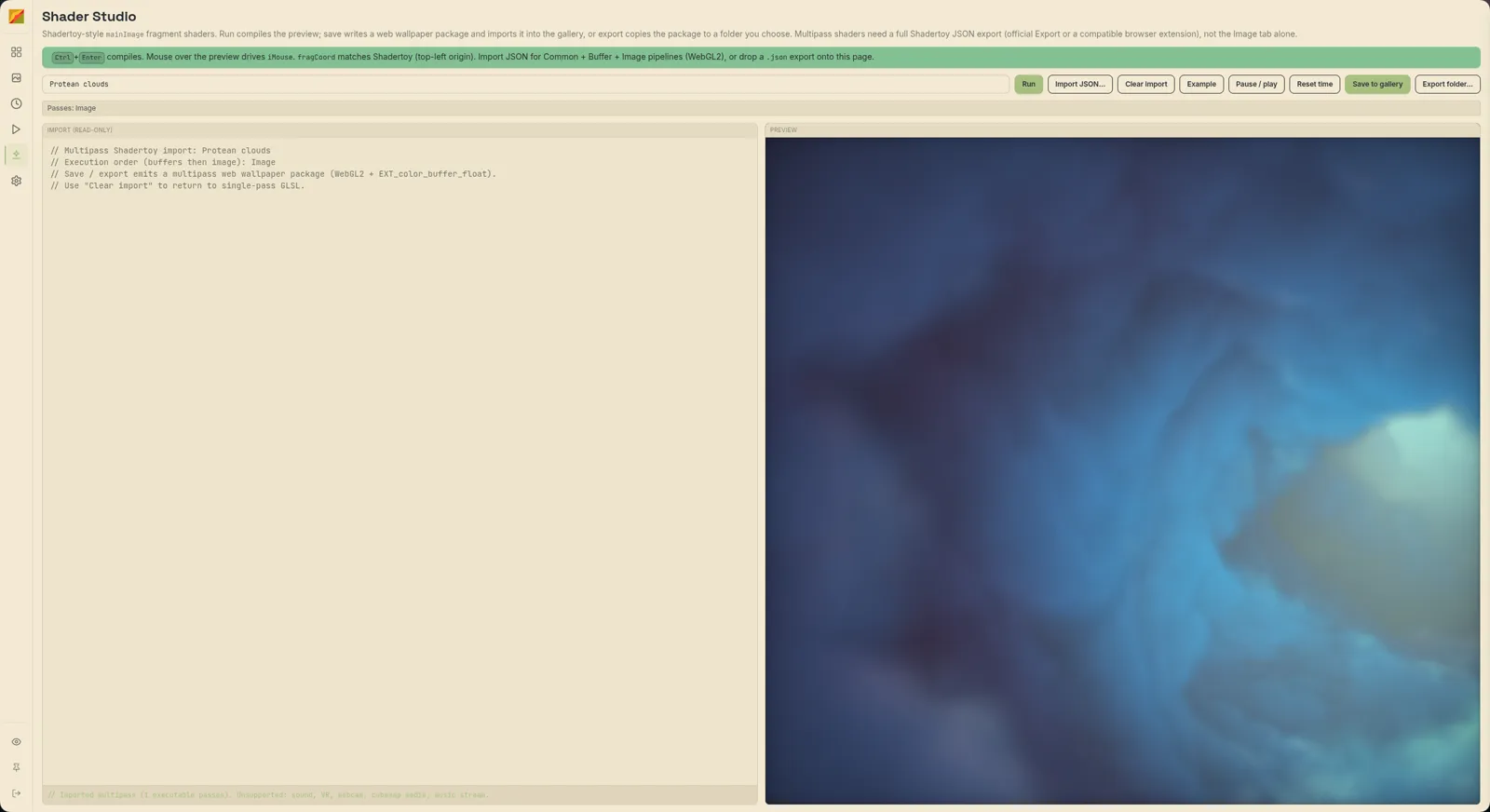
Write or import a Shadertoy-style mainImage GLSL fragment shader, preview it live (WebGL2 with float render targets), and save it to the gallery as a web wallpaper. Your source and title are remembered between sessions.
Write a shader
- Open Shader Studio. Example restores the starter shader.
- Edit the GLSL and press Run or
Ctrl+Enter. It doesn't recompile as you type; the log sayscompiled OKor shows the error. - Pause / play and Reset time control the preview clock.
- Name it in Wallpaper title.
Import from Shadertoy
Export a .json from Shadertoy (or use a compatible browser extension); the Image tab's code alone isn't enough for multipass shaders. Then use Import JSON…, drag the file onto the page, or drag it onto the gallery and accept Open in Shader Studio.
| Feature | Status |
|---|---|
| Common, Buffer and Image passes, buffer feedback | Works |
| Keyboard input | Works |
| Textures, cubemaps, video, webcam, microphone, music | Not supported; the channel reads black |
| Sound passes, VR | Not supported |
An imported shader is a multipass project: the pass order shows above the editor and the editor is read-only. Clear import returns to a single-pass editor.
Save it
After a successful compile:
- Save to gallery imports it into the folder you're viewing as a
webitem. - Export folder… writes the package (
waypaper.json,index.html, pluspreview.webpifffmpegis available) to a folder you choose.
Needs an HTML-capable backend
Web wallpapers only render on wal-qt. See HTML wallpapers.
Loop Studio
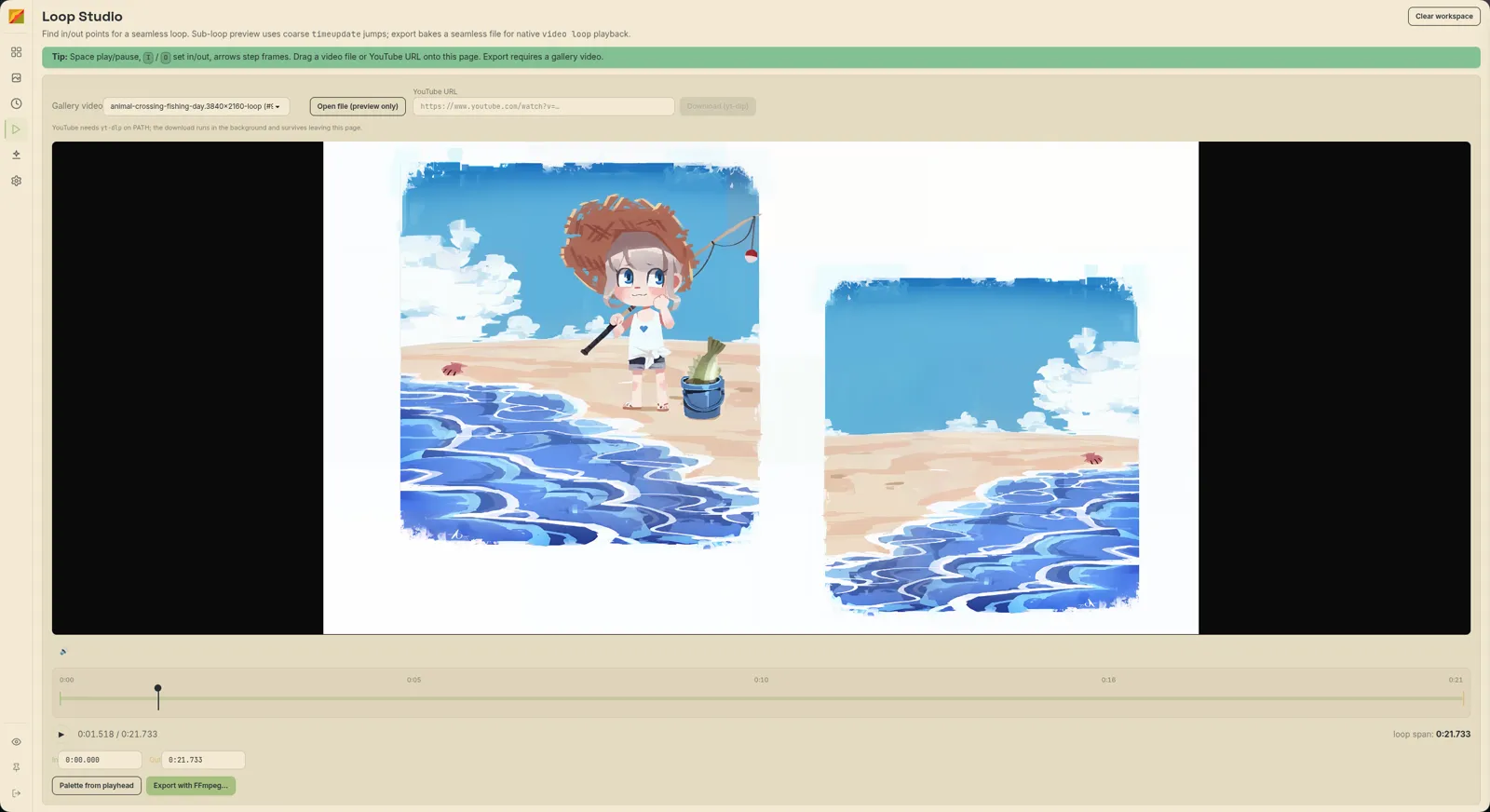
Pick a span of a video, preview it looping, and bake a file that loops without a visible jump. Export and palette extraction need ffmpeg; without it those buttons grey out.
Load a video
- Pick from the Gallery video dropdown, or click Open in Loop Studio in a video's details sidebar.
- Open file (preview only) for a file on disk. It has no export or palette until it's in the gallery.
- Paste a YouTube URL and Download (yt-dlp) (needs
yt-dlponPATH). It downloads one video as mp4 in the background, with a cancel button, then imports it into the gallery. - Drag a video file or YouTube link onto the page.
Set the loop
Drag the In and Out markers, click the timeline to seek, or type times into the In and Out boxes.
| Key | Does |
|---|---|
Space | Play / pause |
I | Set In at the playhead |
O | Set Out at the playhead |
← / → | Step one frame (about 1/30 s) |
The preview may hitch at the Out point; the exported file loops properly.
Export
Export with FFmpeg… opens a dialog:
- Midpoint crossfade (default on): blends the join so the loop point disappears; the result is slightly shorter than the span.
- Preset: WebM VP9 (smaller) or MP4 H.264 (most compatible).
- Apply: Import new copy to gallery (default) or Replace gallery file (same id).
Audio is stripped. Replace overwrites the gallery copy, so keep the default if you want the original.
Palette from the playhead
Palette from playhead extracts the dominant colours of the current frame and saves them on the video, so the colour filters use a frame you chose. Clear workspace starts over.