Wallhaven
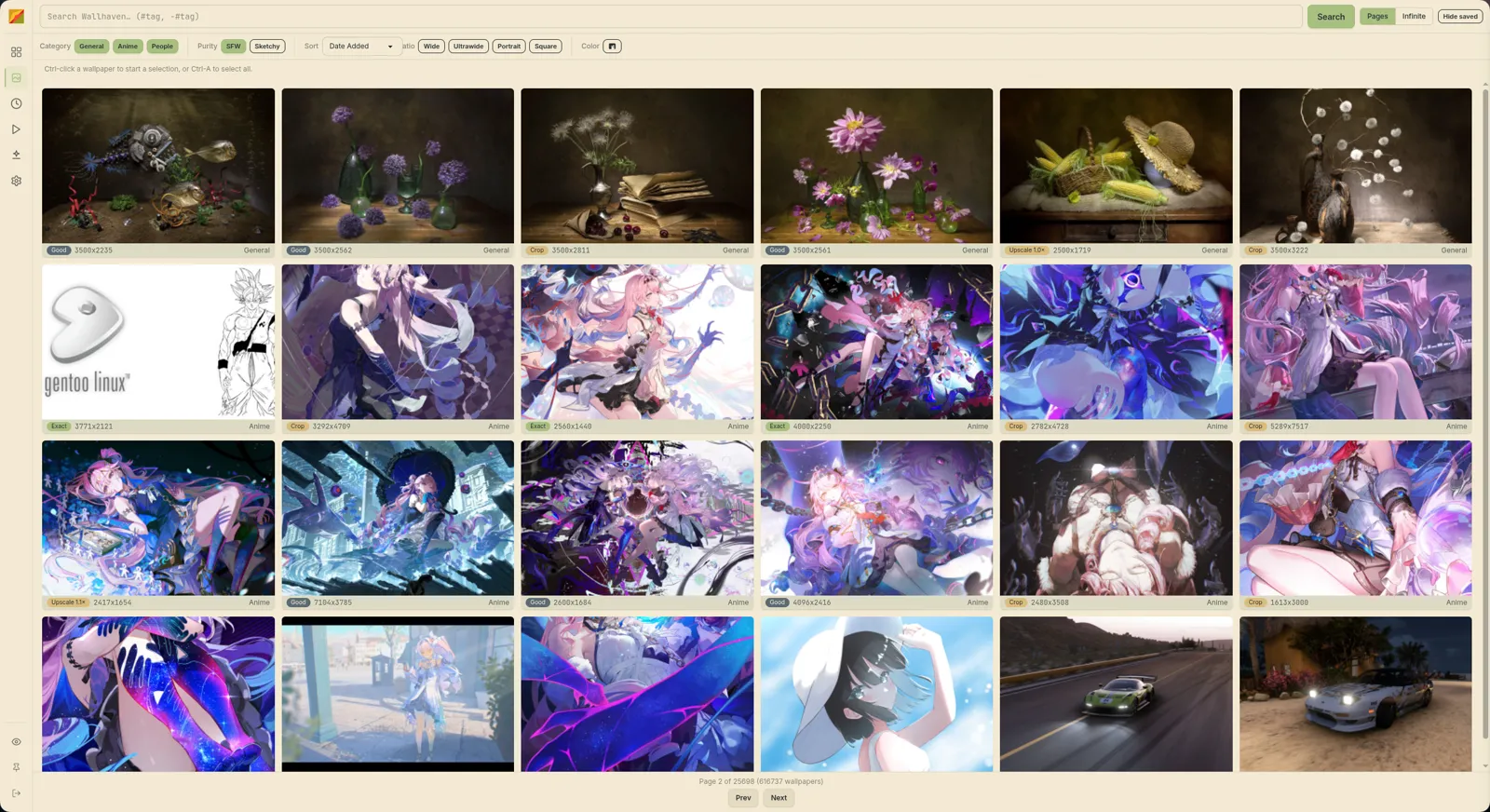
Browse wallhaven.cc inside the app, set a wallpaper from a card or download a pile into your gallery. Off by default.
Enable it
- Open Settings (
Ctrl+,), Wallhaven tab. - Flip Enable Wallhaven.
- Read the disclaimer and hit I Understand, Enable Wallhaven.
Third-party service
Your searches (and API key) go to Wallhaven, which hosts user-uploaded content including NSFW material. Images are fetched from URLs the app doesn't vet.
API key
Optional. Without one you browse SFW and Sketchy; with one, the NSFW purity toggle appears.
- Copy your key from wallhaven.cc/settings/account.
- Paste it into API Key. The eye button shows it; Test checks it.
Blur NSFW thumbnails (on by default) blurs NSFW cards until you hover or focus them. The settings live in the [wallhaven] section of the config file (the key is stored in plain text), see Config.
Search
Type what you'd type on Wallhaven and press Enter or Search. #tag becomes a required tag (+tag), so #nature #night means both; everything else passes through, so Wallhaven's own syntax works.
| Filter | Options |
|---|---|
| Category | General, Anime, People (all on by default) |
| Purity | SFW (default), Sketchy, NSFW (needs an API key) |
| Sort | Date Added, Relevance, Random, Views, Favorites, Top List |
| Ratio | Wide (16x9, 16x10), Ultrawide (21x9, 32x9, 48x9), Portrait (9x16, 10x16), Square (1x1, 3x2, 4x3, 5x4); any combination |
| Color | One of Wallhaven's fixed swatches; the x clears it |
Results come in Pages or Infinite scroll; the toggle next to the search bar is remembered. Hide saved drops images you've already downloaded.
Each card shows resolution, category and a badge for how the image fits your largest monitor:
| Badge | Meaning |
|---|---|
| Exact | At least monitor size, aspect ratio within 2% |
| Good | At least monitor size, aspect ratio a bit off |
| Upscale 1.5× | Smaller than the monitor; the scale-up needed |
| Crop | Aspect ratio over 25% off, expect heavy cropping |
An In gallery chip means you've already downloaded it. That's tracked by a list of Wallhaven IDs in the app's browser storage, so clearing app data or deleting the image from the gallery can make it wrong.
Download
Hover a card:
- Set downloads, imports and sets it as your wallpaper. With several monitors and none selected, a popover asks which.
- Download (arrow icon) only adds it to the gallery.
Double-click does the same as Set, using your display selection (Displays). Right-click adds Add to current playlist, Open on Wallhaven and Copy Wallhaven URL.
Click a card for the detail view (resolution, size, tags, colours); clicking a tag appends #tag to your search. Escape closes it.
To grab many: Ctrl-click cards (or Ctrl+A for everything on screen), then Download N to Gallery. Three downloads run at once; Escape clears the selection.
Downloads go through the normal import into the top level of the gallery, with Wallhaven's tags and palette attached, so tag: and the colour filters work right away.